Home cinema
How I stream from my NAS with Infuse on Apple TV
My UniFi UNAS 2 holds the films in the office. Infuse on the living-room Apple TV 4K turns them into a library I can browse from the sofa.
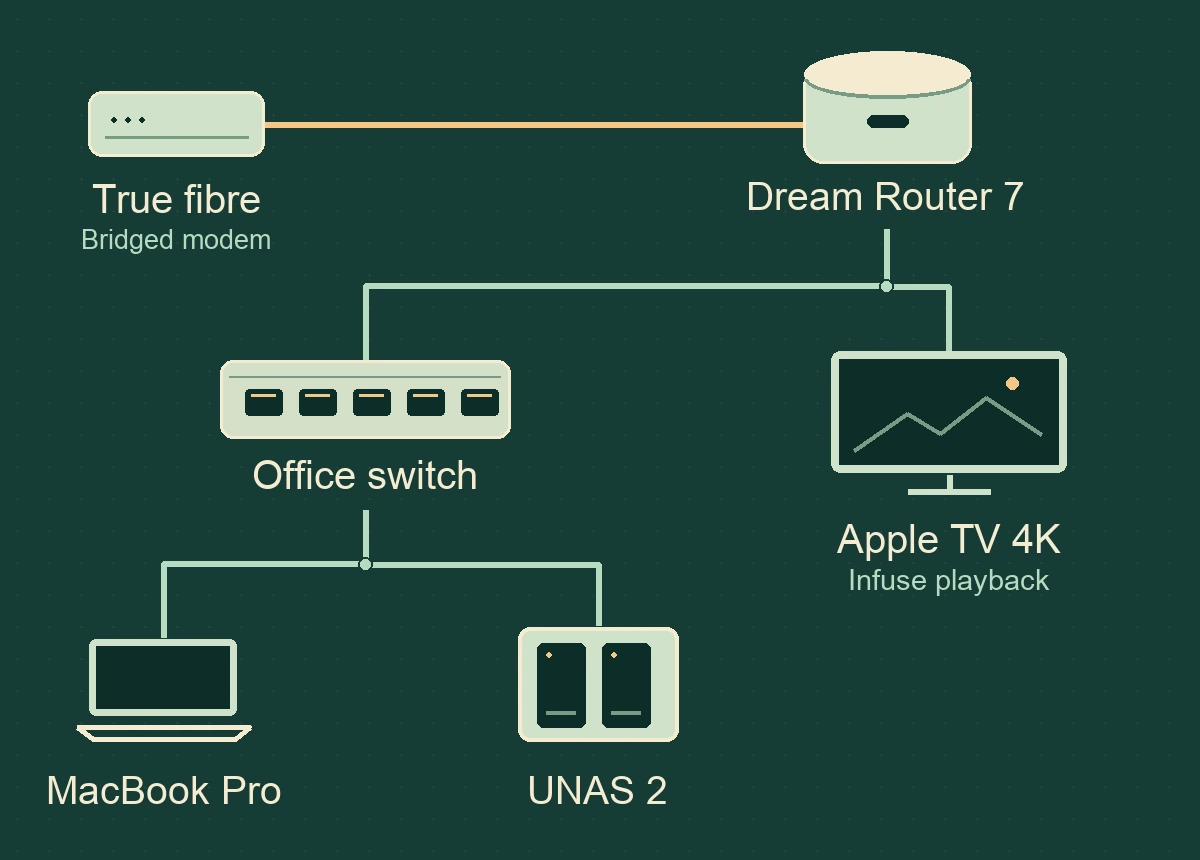
What happens when I press Play
I pick up the Apple TV remote and open Infuse. The film I choose lives on a UniFi UNAS 2 in the office, on the same pair of 26 TB Seagate Exos drives I use for household storage. Infuse opens the file over SMB, the file-sharing service on the NAS. The Apple TV 4K plays it on our 65-inch Samsung S95D OLED, with a Samsung Q990D soundbar handling the audio.
I also use Infuse on my MacBook Pro. Once a film is on the NAS, I can close the laptop and still watch it from the sofa. The NAS stays beside the office switch and the wired Apple TV reads the file directly.
Give the player a folder it can read
The first thing to get working is one ordinary video file. A short clip of your own is enough to check the whole route before you organise a large collection.
- On the UNAS, enable SMB. Open UniFi Drive → Settings → Services and check that SMB is enabled. Choose the shared drive or folder that will hold your videos.
- Give the player access to the media. In UniFi Drive → People, select a user with access to that shared drive and set up its file-service credentials. Read access is sufficient for playback. Keep any Time Machine backups outside the media folder.
- Copy a test video from the Mac. In Finder, choose Go → Connect to Server. Use the SMB address shown by your own NAS, sign in with an account that can write to the media folder, and copy the clip there. Wait for the copy to finish.
Connect Infuse on Apple TV
- Find the NAS. With the Apple TV on the same home network, open Infuse. From its setup screen choose Add → Shares. Select your NAS from the list. If discovery misses it, choose Other… and enter the NAS’s local address.
- Save the connection. Enter the file-service username and password for the account that can read your videos. Infuse checks the connection and shows the available folders.
- Save the media folder as a Favorite. Highlight the folder containing your clip and hold the remote’s centre Select button. On Apple TV, Infuse needs at least one folder saved as a Favorite. Open it from the Infuse home screen, select the clip, and press Play.
A share is the connection to the NAS. A Favorite takes you straight to a folder on it. The Library is a catalogue of titles found in the folders you choose to scan. All three point back to the files on the NAS.
Turn folders into a film library
In Infuse → Settings → Library, check which Favorites are included. Infuse scans new Favorites by default. Select the folders containing films and TV shows, let the first scan finish, then open Library to browse the results. A folder Favorite is handy for playing a home video even when it has no film poster.
I’ve had Infuse match a file to the wrong title. On Apple TV, open the film’s details, choose the three-dot menu beside Play, then Edit Metadata. Search for the title and pick the entry with the right year. That fixes the library entry while the video stays where it is. Firecore’s guide to correcting a match.
A release year in the filename can prevent the mix-up next time. For example, The Italian Job (1969).mkv identifies a different film from The Italian Job (2003).mkv. For television, a show name and an episode number such as S01E02 help Infuse group the episodes. Firecore’s file-naming examples.
Choose subtitles or another soundtrack from the sofa
While a film is playing, swipe down on the Apple TV remote to open Infuse’s playback options. Choose Subtitles for on-screen text, or Audio to switch between the soundtracks supplied with the film. If the language you want appears only under Subtitles, you can read it while listening to the original dialogue. A dub needs its own audio track. Infuse playback controls.
For a separate subtitle file, put it beside the film on the NAS with the same base name. For example, pair The Italian Job (1969).mkv with The Italian Job (1969).srt. Infuse can pick up the subtitles through the same SMB share. Firecore’s subtitle guide.
If the film doesn’t appear or play
- The Apple TV can’t find the NAS
- Check that the NAS is awake and the Apple TV is on a network that can reach it. Try the local address under Other…. If Finder can open the share on the Mac, you have a working address to check against.
- The NAS appears but the folder is empty
- Check the same media folder using the player’s account. A successful sign-in tells you the account exists. Its folder permissions determine which films it can see.
- The clip plays from Favorites but is missing from Library
- Playback already proves the file is reachable. Check the Favorite under Settings → Library, then check the filename and let the scan finish.
With the files in the office and an Ethernet outlet behind the TV, the film travels across the house for playback. If you’re planning those cable runs, the home networking article shows how ours fit together. Its file transfer calculator estimates how long it takes to copy a film onto the NAS from the Mac.
Household equipment inventory and Technology project notes on using Infuse on Mac and Apple TV (19 October 2025), matching films (14 February 2026), subtitles and audio (15 March 2026), and the wired Apple TV connection (14 October 2026). The setup steps follow Ubiquiti’s UniFi Drive file-sharing guide, Firecore’s Apple TV share setup and Firecore’s library guide.